
Tea Spins Casino doesn't push a native download from the App Store or Google Play. Instead, you open the mobile site in your phone's browser and save it to your home screen in a few taps. This guide shows you exactly how that works on iPhone and Android, with the setup steps UK players actually need. You'll see what you can actually reach once the icon sits on your screen, and how it compares with a plain browser tab. Every step below comes from testing the mobile site itself, not from marketing claims.
Tea Spins Pocket Fit Panel
Most app pages tell you to 'add it to your home screen' and leave the rest to guesswork. This panel lines up the exact tap sequence for iPhone and Android side by side, and confirms what that shortcut actually delivers once it sits on your screen: a session that stays signed in, the full 4,860+ game library, and live tables that keep their £1–£10,000 stake range on mobile.
| Step | iPhone (Safari) | Android (Chrome) |
|---|---|---|
| Open the browser | Launch Safari and load the Tea Spins Casino mobile site; the lobby opens straight onto the 4,860+ game library | Launch Chrome and load the Tea Spins Casino mobile site; the lobby opens straight onto the 4,860+ game library |
| Find the menu | Tap the share icon at the bottom of the screen | Tap the three-dot menu in the top corner |
| Add the icon | Choose 'Add to Home Screen' and confirm the name; the shortcut stays signed in, so you skip re-entering your password next time | Choose 'Add to Home screen' or 'Install app' and confirm; the shortcut stays signed in, so you skip re-entering your password next time |
| Open it again | Tap the new icon like any other app, no store needed and no fresh login screen | Tap the new icon like any other app, no store needed and no fresh login screen |
| What loads | Full 4,860+ game library, live tables at £1–£10,000 stakes, and your account balance already visible | Full 4,860+ game library, live tables at £1–£10,000 stakes, and your account balance already visible |
Is there a Tea Spins Casino app for iPhone?
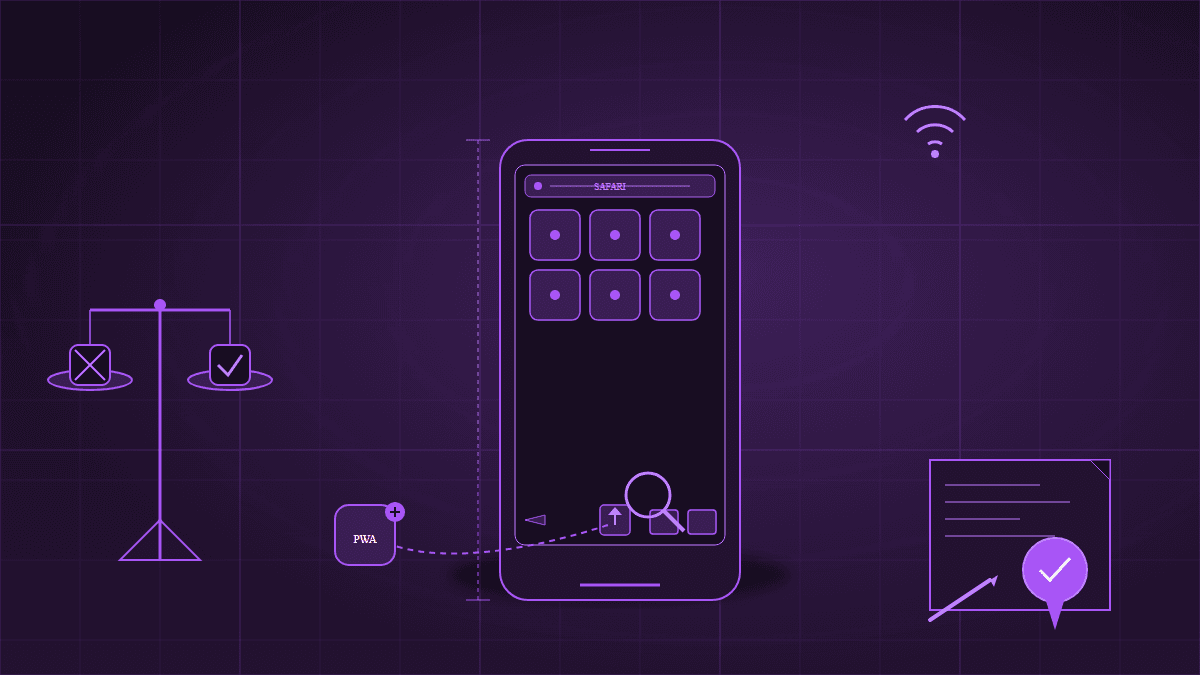
There's no separate iPhone app waiting in the App Store, and that's genuinely fine for you as a player. Tea Spins Casino runs as a Progressive Web App. That means Safari loads the full mobile site and lets you pin a working shortcut to your home screen, just like any other icon on your phone. Open Safari and type in the Tea Spins Casino address. The mobile lobby should load quickly over a typical UK mobile connection, whether you're on wifi at home or using mobile data out and about.
Once the site is open, tap the share icon at the bottom of the Safari window. Look for "Add to Home Screen" in the list that pops up. Confirm the name you want to see under the icon. Your new shortcut settles in next to your other apps, ready to open straight into the lobby every time you tap it. You won't need to retype anything or repeat the Safari steps on future visits. The icon remembers exactly where it points, so getting back into your account takes one tap rather than a fresh search.
Add Tea Spins Casino to Your Phone
- 1Open your mobile browserType the Tea Spins Casino address into Safari on iPhone or Chrome on Android, rather than searching an app store. The mobile site itself holds everything you need.
- 2Log in or registerSign in with your usual details if you already play. If you're joining Tea Spins Casino for the first time, fill in the registration form from your phone instead.
- 3Open the share or menu iconTap the share icon near the bottom of Safari, or the three-dot menu in the top corner of Chrome. Either one reveals the home-screen option hiding in that browser's list.
- 4Add it to your home screenConfirm the name you'd like under the icon. A Tea Spins Casino shortcut then appears next to your other apps, ready whenever you want to play.
- 5Launch it like any appTap the new icon whenever you fancy a session. It opens straight into the mobile lobby, already signed in if you stayed logged in last time.
- 6Check your mobile cashierOpen the cashier to deposit from £20 and see which payment methods, including crypto options, show up for your UK account.
- 7Explore the games and live tablesBrowse slots, live dealer tables and Aviator from the same menu you'd use on desktop, with everything loading inside the shortcut you just created.
Tea Spins Casino on Android phones
Android handles the same job in a near-identical way, so UK players carrying an Android phone aren't missing out by skipping iPhone. Open Chrome, head to the Tea Spins Casino mobile site, and tap the three-dot menu sitting in the top corner of the screen. Depending on your Chrome version you'll spot either "Add to Home screen" or "Install app". Either option gives you the same end result: a shortcut icon that opens the mobile site directly, without routing through the Google Play Store first.
Because the games themselves live on the site rather than inside a downloaded package, your Android phone doesn't need extra storage set aside. A full app install would normally demand that space, but this route skips it entirely. If you switch phones, reset your browser or simply fancy a cleaner home screen, you can repeat the same short set of taps whenever you want your shortcut back. You're never stuck tied to one single device or one particular phone.
What you get in the Tea Spins Casino mobile site
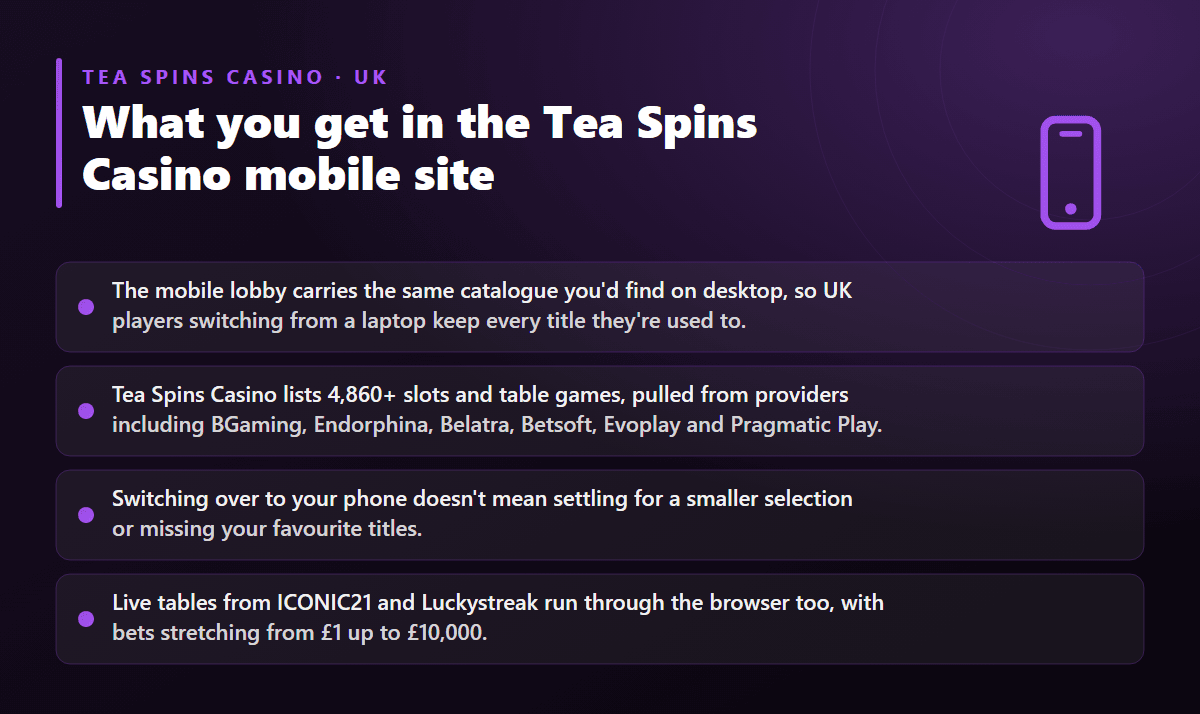
The mobile lobby carries the same catalogue you'd find on desktop, so UK players switching from a laptop keep every title they're used to. Tea Spins Casino lists 4,860+ slots and table games, pulled from providers including BGaming, Endorphina, Belatra, Betsoft, Evoplay and Pragmatic Play. Switching over to your phone doesn't mean settling for a smaller selection or missing your favourite titles.
Live tables from ICONIC21 and Luckystreak run through the browser too, with bets stretching from £1 up to £10,000. Both cautious players and high-stake UK players find a seat that suits their budget, and UK players switching from desktop keep the same live tables on mobile. Aviator sits in the same menu alongside a wide demo-mode selection. This lets you try a game without touching your real balance first, which is handy when you're testing something new on a small screen. If you fancy browsing the full line-up before committing to anything, take a look at the games section. It lays out what's actually on offer in more detail: browse the Tea Spins Casino games library.
Deposits and withdrawals work through the same mobile cashier you'd use on a desktop browser. Card withdrawals typically land within two to four days. Crypto withdrawals using Bitcoin, Ethereum, Litecoin or similar currencies usually clear within one to twenty-four hours, so your choice of payment method genuinely changes how long you wait. If you want a closer look at which method suits your habits, check the payments page. It breaks the options down clearly: compare Tea Spins Casino payment methods.
Tea Spins Casino mobile access at a glance
| Feature | iPhone | Android |
| Access method | Safari browser, add to Home Screen | Chrome browser, add to Home Screen |
| App store download | Not required | Not required |
| Game library | 4,860+ titles | 4,860+ titles |
| Live casino bet range | £1–£10,000 | £1–£10,000 |
| Crypto withdrawal time | 1-24 hours | 1-24 hours |
| Card withdrawal time | 2-4 days | 2-4 days |
| Session continuity | Stays signed in between visits | Stays signed in between visits |
| Support | 24/7 via chat | 24/7 via chat |
App icon or browser tab: which is better for you?
Both routes land you on the same Tea Spins Casino account, so for UK players the real choice comes down to convenience rather than missing features. A home-screen icon saves you from typing the address every session. It also tends to open a touch faster, since your phone treats it like a shortcut rather than loading a fresh browser tab from scratch each time. A plain browser tab works just as well if you're playing from a shared or borrowed phone. You might prefer this if you'd rather not leave an icon sitting on someone else's home screen.
Either way, you're never asked to trust an unfamiliar file or a sideloaded install just to get playing. Everything runs through Safari or Chrome, the same browsers you already use for banking or email. That keeps your whole mobile session inside tools you already trust, rather than something new and unfamiliar sitting on your phone.
Mobile security, data use and battery life
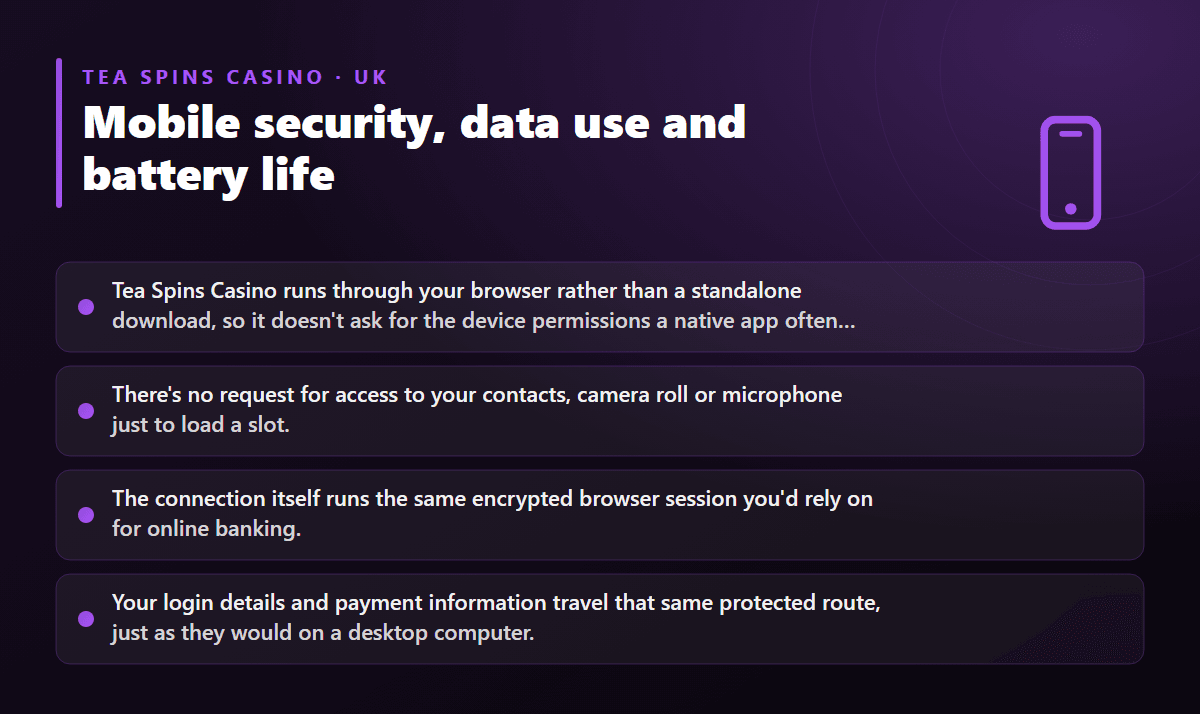
Tea Spins Casino runs through your browser rather than a standalone download, so it doesn't ask for the device permissions a native app often requests. There's no request for access to your contacts, camera roll or microphone just to load a slot. The connection itself runs the same encrypted browser session you'd rely on for online banking. Your login details and payment information travel that same protected route, just as they would on a desktop computer.
In everyday use, the mobile site shouldn't drain your battery noticeably faster than normal browsing. There's no background process constantly syncing, the way some downloaded apps run even when you're not playing. Data use stays reasonable too. Loading a slot or settling into a live table pulls roughly what you'd expect from streaming a short clip, though your own usage will shift with your connection and the games you pick. Tea Spins Casino operates under a licence from the Curaçao Gaming Control Board. The mobile site is open to players aged 18 and over, and UK players complete identity checks before any withdrawal goes through.
FAQ
No. You open it through your phone's browser and add a shortcut icon to your home screen, so there's nothing to download from an app store.
Yes, it runs smoothly through Safari, and you can save it to your home screen so it opens just like a regular app.
Yes, Android works the same way through Chrome, with the same games, the same account and the same home-screen shortcut option.
The mobile site is lightweight compared with many downloaded apps, so it shouldn't drain your battery or data any faster than normal browsing.
Yes, your login works across devices, so you can start a session on your computer and pick it up on your phone later.
Yes, live tables run through the mobile browser just as they do on desktop, with no separate download needed.
Yes, the shortcut simply points to the browser-based site, so it carries no extra permissions beyond what your browser already has.